Blog
How to Build: Securing Hardware Root of Trust via TPM 2.0 in Clinical PCs using Horizon TM-6140-22 Medical Touchscreen Computer
Teguar Engineering Team · July 9, 2025
An engineering guide showing how to implement securing hardware root of trust via tpm 2.0 in clinical pcs on Teguar's purpose-built Horizon TM-6140-22 Medical Touchscreen Computer with ai hardware integration.
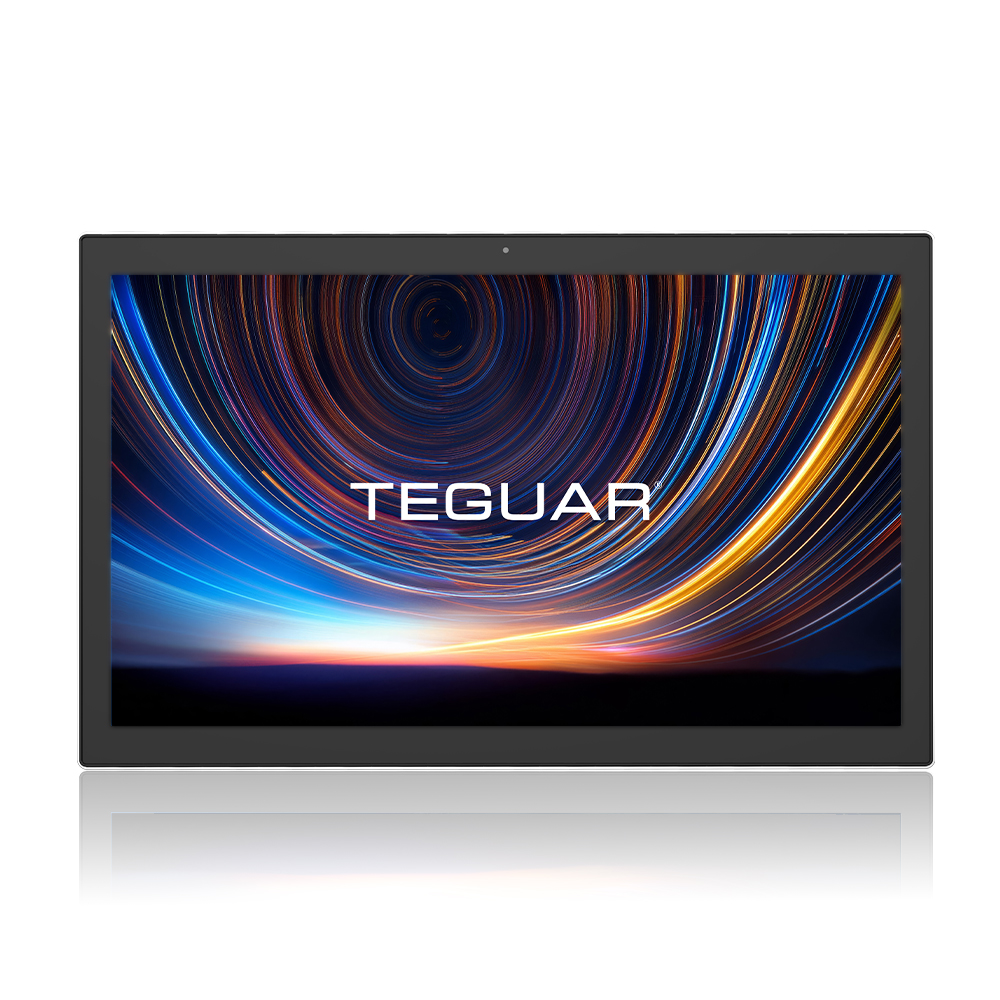
title: "How to Build: Securing Hardware Root of Trust via TPM 2.0 in Clinical PCs using Horizon TM-6140-22 Medical Touchscreen Computer" excerpt: "An engineering guide showing how to implement securing hardware root of trust via tpm 2.0 in clinical pcs on Teguar's purpose-built Horizon TM-6140-22 Medical Touchscreen Computer with ai hardware integration." date: "2026-07-07" skill: "AI Hardware Integration" hardware_name: "Horizon TM-6140-22 Medical Touchscreen Computer" hardware_img: "21-5-inch-medical-touch-screen-computer-horizon-tm-6140-22.jpg" hardware_type: "medical-panel-pc"
Introduction
Protecting patient Health Information (PHI) is a legal and ethical mandate. Clinical PCs deployed at nurse stations, examination rooms, or self-service kiosks must be secured against physical and network-based tampering. A hardware-based Trusted Platform Module (TPM 2.0) forms the root of trust for modern clinical operating systems.
In this guide, we configure TPM 2.0 and Secure Boot on the Horizon TM-6140-22 Medical Touchscreen Computer.
The Hardware Foundation: Horizon TM-6140-22 Medical Touchscreen Computer
The Horizon TM-6140-22 Medical Touchscreen Computer is a medical-grade touchscreen computer with built-in security features:
- Integrated TPM 2.0: Cryptographic co-processor that securely stores keys, certificates, and passwords.
- Secure Boot Firmware: Validates bootloaders, kernels, and driver signatures.
- IP65 Rated Front Panel: Dust-tight and washdown-safe.
- Intel Active Management Technology (AMT): Allows secure remote management.
Step-by-Step Security Configuration
Step 1: Enable TPM 2.0 in UEFI Firmware
- Boot the Horizon TM-6140-22 Medical Touchscreen Computer and enter the UEFI BIOS setup utility.
- Navigate to Security -> Trusted Computing.
- Set TPM Support to Enabled and TPM Device to PTT or dTPM.
Step 2: Enforce Full Disk Encryption (BitLocker / LUKS)
By linking disk decryption keys to the TPM PCR (Platform Configuration Register) states, the drive will only decrypt if the boot sequence is unmodified.
# On Linux, verify TPM 2.0 state and bind LUKS decryption
tpm2_pcrread sha256:0,7
Step 3: Secure Boot Verification
Verify that the operating system only executes kernels signed by trusted authorities.
Conclusion
Enabling TPM 2.0 and Secure Boot on the Horizon TM-6140-22 Medical Touchscreen Computer guarantees hardware-level protection for sensitive patient data and prevents unauthorized software modifications.